
How to add a product
Photos, price, stock, colours, sizes and options with extra prices, all from your phone.
Reviewed 17 November 2026. Screenshots are examples; written steps reflect current prices and plan limits.
⏱ 4 min📍 Dashboard → Products → Add product
Prefer to watch? Your first steps: create a shop, add a product and share (1:25)
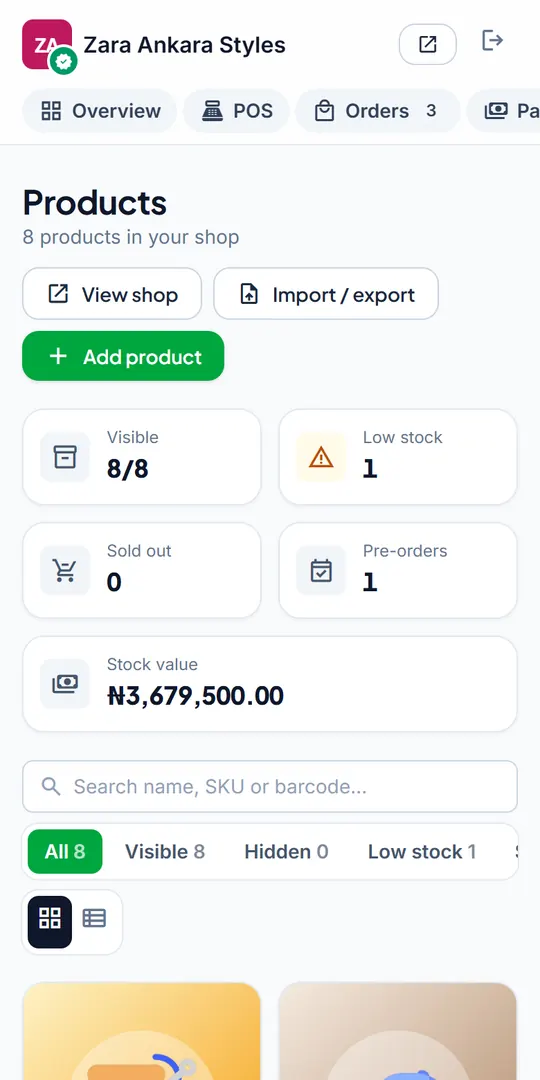
1Open Products
In your dashboard tap Products, then Add product.
2Add photos
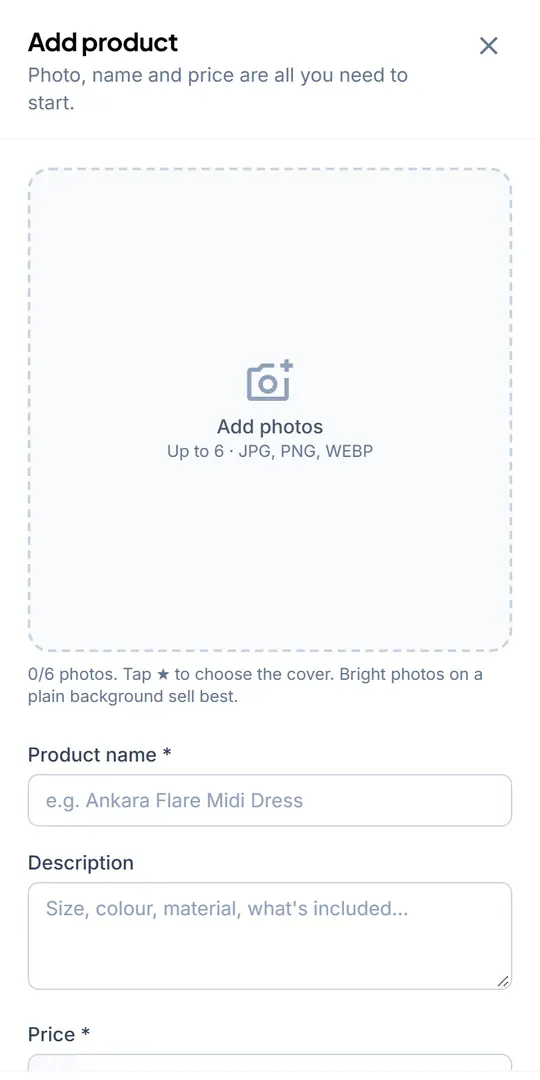
Tap Add photos and take or choose up to several photos. The first is the cover; tap Make cover on another photo to change it.
3Name, description and price
Fill in the Product name, a short Description (size, material, what's included) and the Price. To run a sale, add a Sale price and optional start and end dates.
4Stock
Enter the Quantity in stock, or leave it empty for unlimited. Stock goes down automatically with every online order and POS sale, so you never oversell.
5Colours (optional)
Under Colours, tap to add the colours you have. Tap a photo next to a colour so shoppers see that colour when they pick it.
6Sizes & options (optional)
Under Sizes & options add an option such as Size with choices (paste “S, M, L” to add them at once). Each choice can have an extra price, for example XL +₦1,000. You can also ask the customer for details, like a name to embroider, and sell per yard or per kg.
7Save
Tap Add product. It appears in your shop immediately. Untick Visible in shop to hide a product without deleting it. On Free, you can replace 2 visible products in any rolling 7 days. Changing a visible product's name, description or photos uses one replacement per save. Price, stock and hiding stay available. Products shows your remaining allowance.
💡 Tips
- Square, well-lit photos look best: all product photos are shown as squares.
- Got many products? Import them from a spreadsheet (see “How to import products from a spreadsheet”).
Want every step on one page?
⬇ Seller guide (PDF) Updated 17 Nov 2026More guides
Still stuck? Contact the Kaya 9ja Retails team