
How to confirm payments and dispatch orders
Check the customer's receipt, confirm the order, then mark it dispatched, ready for pickup or delivered.
Reviewed 17 November 2026. Screenshots are examples; written steps reflect current prices and plan limits.
⏱ 3 min📍 Dashboard → Orders
1Open the order
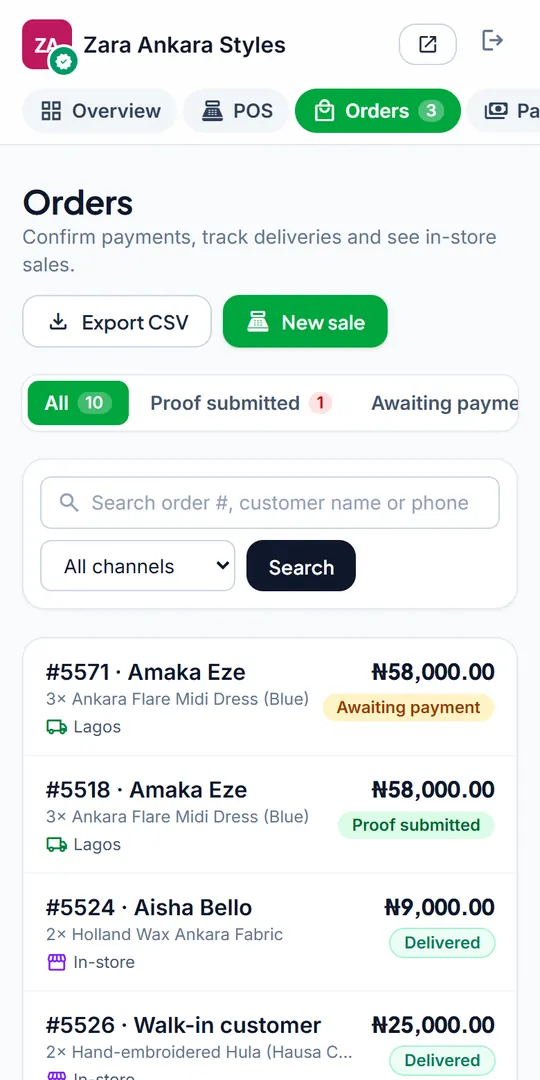
Tap Orders. New orders and payment proofs waiting for you are at the top. Search by order number, name or phone.
2Check the payment proof
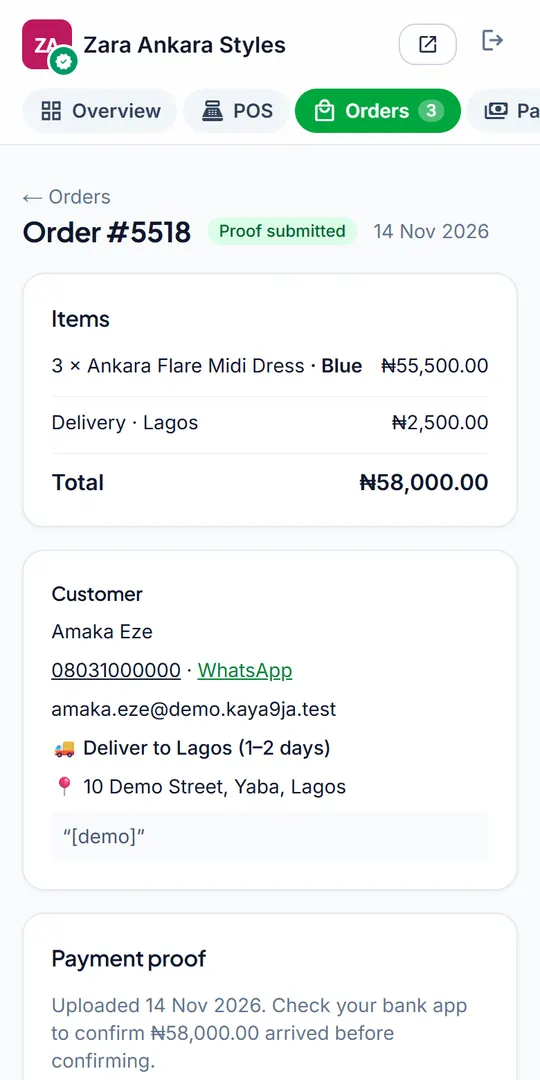
Open the order and look at the receipt the customer uploaded. Check your bank app that the money actually arrived before going further.
3Confirm or reject
If the money is in, tap ✓ Confirm order. If not, tap Reject proof and say why (e.g. “Amount received was ₦5,000 short”); the customer is asked to upload again.
4Dispatch or get it ready
Tap 🚚 Mark dispatched and add the courier and waybill details, or 🏬 Ready for pickup. The customer sees each update on their order page.
5Complete it
When the customer has it, tap ✓ Mark delivered (or ✓ Mark collected). For pay on delivery orders the button confirms you received the money.
💡 Tips
- Never dispatch on the strength of a screenshot alone: always check your bank app first.
- Customers can review your shop once an order is delivered.
Want every step on one page?
⬇ Seller guide (PDF) Updated 17 Nov 2026More guides
Still stuck? Contact the Kaya 9ja Retails team