
How to sell in your shop with the POS
Ring up walk-in customers on your phone: tap or scan products, take payment, print a receipt. Requires Pro or Business.
Reviewed 17 November 2026. Screenshots are examples; written steps reflect current prices and plan limits.
⏱ 2 min📍 Dashboard → POS
1Open the POS
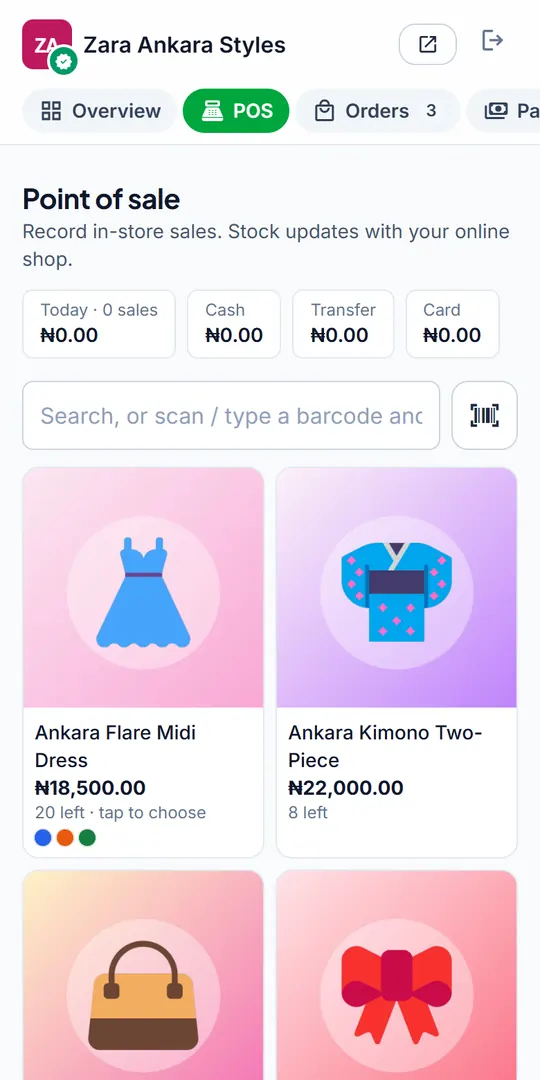
Tap POS in your dashboard.
2Add items
Tap products to add them to the current sale, or tap Scan to use your phone camera on a barcode. Choose colours or options when asked.
3Take payment
Choose 💵 Cash, 🏦 Transfer, card, or 📱 Scan to pay (Pro and Business with Paystack or Flutterwave connected: the customer scans a QR and the sale is recorded once the payment is confirmed). For cash, enter the cash received and the POS shows the change.
4Finish the sale
Complete the sale and print or share the receipt. Customer details are optional. Stock updates online too.
💡 Tips
- Add a Barcode to products (Products → edit) so you can scan them at the POS.
- The POS records your sale; it is not a card terminal. Confirm cash, bank transfer or terminal payment before completing the sale.
Want every step on one page?
⬇ Seller guide (PDF) Updated 17 Nov 2026More guides
Still stuck? Contact the Kaya 9ja Retails team