
How to get paid online with your own Paystack or Flutterwave
Optional: let customers pay by card, bank transfer or USSD. The money goes straight into your own Paystack or Flutterwave account. Requires Pro or Business.
Reviewed 17 November 2026. Screenshots are examples; written steps reflect current prices and plan limits.
⏱ 3 min📍 Dashboard → Payments
1Open an account
Create a free business account with Paystack (dashboard.paystack.com) or Flutterwave (app.flutterwave.com) and complete their business verification. They need it before live payments.
2Copy your keys
Paystack: Settings → API Keys & Webhooks. Flutterwave: Settings → API Keys. Copy your public key and secret key.
3Connect
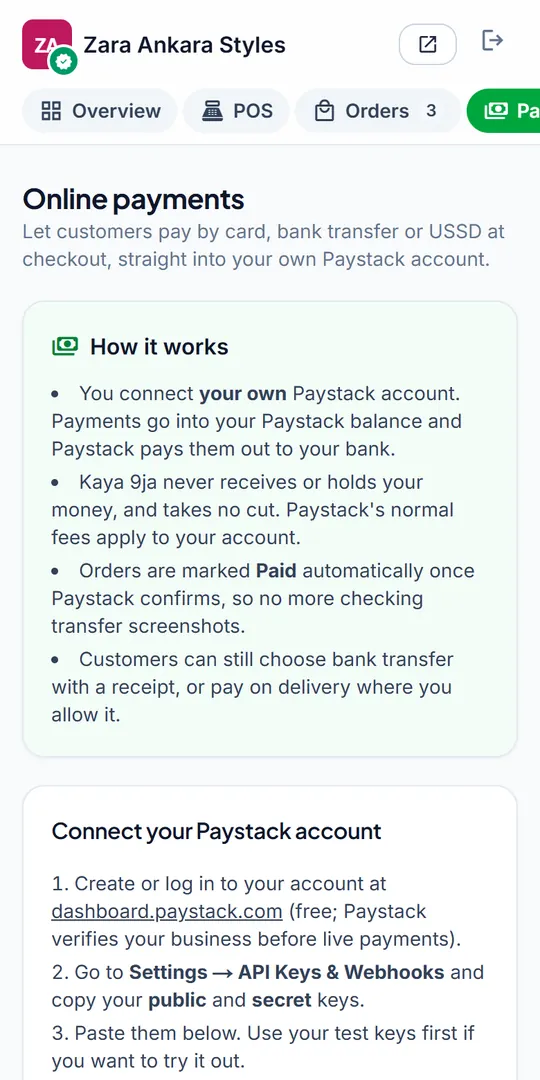
In Dashboard → Payments choose Paystack or Flutterwave, paste both keys and tap Connect. Your secret key is stored encrypted. Kaya 9ja Retails charges 0% sales commission; the provider's processing fees may apply.
4Done
Customers now see Pay online at checkout next to bank transfer. Paid orders confirm themselves, so you don't need to check a receipt screenshot.
💡 Tips
- Connect one account at a time: Paystack or Flutterwave. Connecting one replaces the other; payments already made stay recorded.
- Set the webhook shown on the Payments page in your Paystack or Flutterwave account, so payments confirm even if a customer closes the page early.
- With an account connected, you can also collect payments by QR: see Collect payment.
Want every step on one page?
⬇ Seller guide (PDF) Updated 17 Nov 2026More guides
Still stuck? Contact the Kaya 9ja Retails team